
How to Clear Your Browser Cache: Chrome, Edge, Firefox, Safari and Phones
Website looks old or broken after an update? Clear your browser cache in Chrome, Edge, Firefox, Safari, Android or iPhone, step by step and without getting logged out.
 Codereyes Team · 6 min read
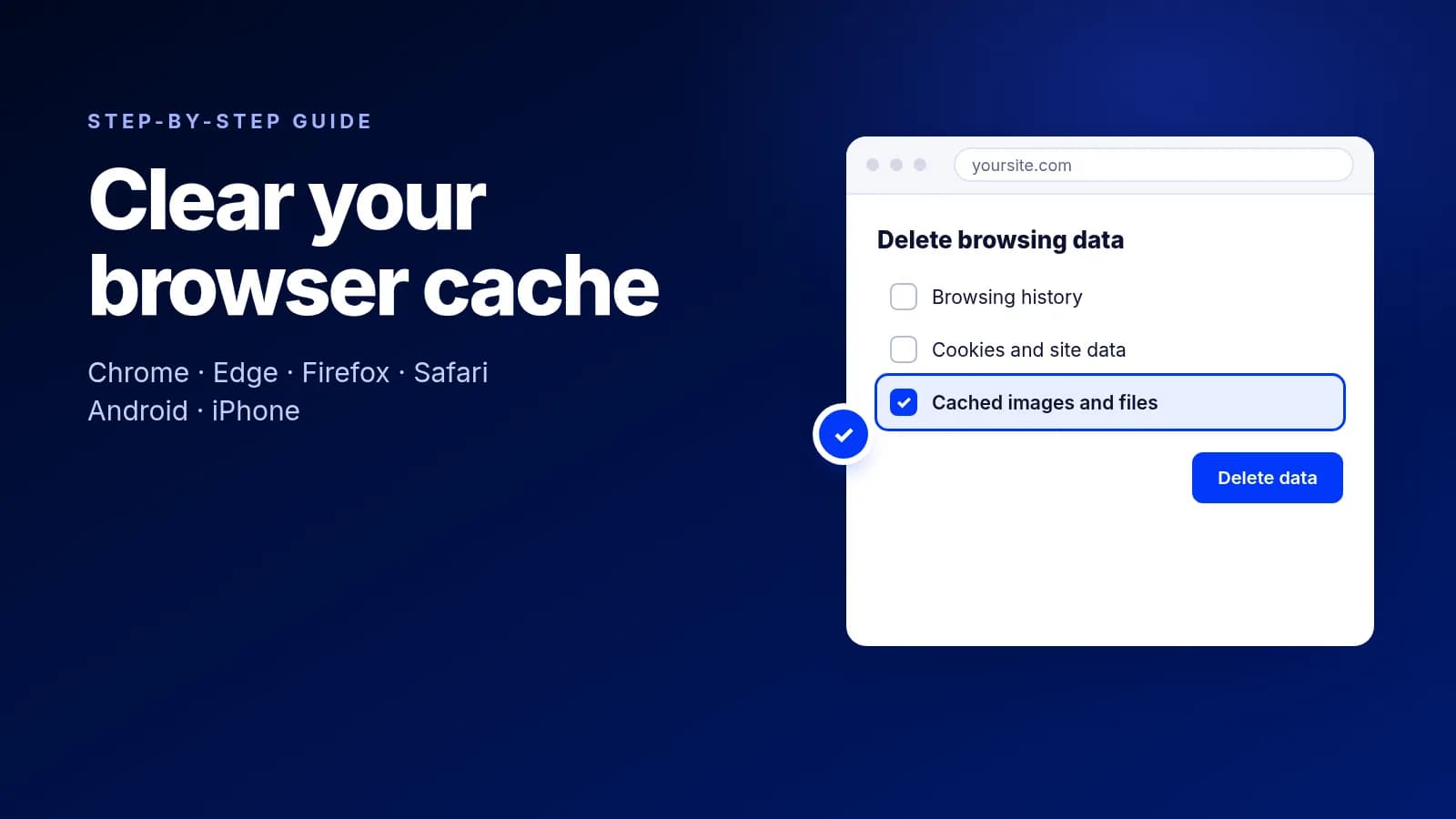
You updated your website, but it still looks the same. A button is in the wrong place, a new photo won't show, or a login page keeps sending you in circles. Nine times out of ten the site is fine. Your browser is showing you an old copy it saved earlier: its cache.
This guide shows how to clear that cache in every major browser, on computers and phones, without losing your saved passwords or getting logged out of every site.
To open pages faster, your browser keeps copies of images, styles and scripts from sites you visit. Next time, it reuses them instead of downloading everything again. That's great until a site changes: the browser can keep showing the saved version for hours or days.
Clear the cache when:
- a website looks broken, half-styled or out of date after an update
- images, prices or text you changed still show the old version
- a page keeps loading forever or a login keeps looping
- our support team asks you to, so we can rule it out
Every browser offers several things to delete at once. For a website that looks wrong, you only need the first one:
- Cached images and files: the saved copies of pages. Safe to clear; you stay logged in.
- Cookies and site data: these keep you signed in. Clearing them logs you out of most sites.
- Browsing history: the list of pages you visited. It doesn't affect how sites look.
Saved passwords are a separate option and are never deleted unless you tick them yourself.
If only one page looks wrong, reload it while skipping the cache. Open the page and press:
- Windows and Linux (Chrome, Edge, Firefox):
Ctrl + F5orCtrl + Shift + R - Mac (Chrome, Edge, Firefox):
Cmd + Shift + R - Safari on Mac:
Option + Cmd + R
Still wrong? Clear the cache for the whole browser, below.
- Click the three dots ⋮ at the top right.
- Choose Delete browsing data. Shortcut:
Ctrl + Shift + Deleteon Windows,Cmd + Shift + Deleteon Mac. - Set Time range to All time.
- Tick only Cached images and files.
- Click Delete data.
- Click ⋯ (Settings and more) at the top right, then Settings.
- Open Privacy, search, and services.
- Under Clear browsing data, click Choose what to clear. Shortcut:
Ctrl + Shift + Delete. - Pick a Time range, tick only Cached images and files, then click Clear now.
- Click the menu ☰, then Settings.
- Open Privacy & Security and scroll to Cookies and Site Data.
- Click Clear Data…. Shortcut:
Ctrl + Shift + Delete(Cmd + Shift + Deleteon Mac). - Tick only the cache option (Temporary cached files and pages; older versions call it Cached Web Content), then click Clear.
Safari hides its "empty cache" button in the Develop menu. Turn it on once:
- In the menu bar, choose Safari → Settings, then the Advanced tab.
- Tick Show features for web developers (older versions: "Show Develop menu in menu bar").
- From the new Develop menu, choose Empty Caches. Shortcut:
Option + Cmd + E.
Chrome on Android
- Open Chrome and tap ⋮ next to the address bar.
- Tap Delete browsing data, then More options.
- Set the time range to All time, tick only Cached images and files and tap Delete data.
Safari on iPhone and iPad
- Open the Settings app, then Apps → Safari (on older iOS versions, Safari is in the main Settings list).
- Tap Clear History and Website Data and confirm.
This also clears your Safari history. To keep the history, go to Safari → Advanced → Website Data and tap Remove All Website Data instead: it removes the cache and cookies only.
In Chrome and Edge on a computer you can empty the cache for just the site you're on, without touching anything else:
- Open the website and press
F12(Cmd + Option + Ion Mac) to open the developer tools. - Right-click the reload button ⟳ next to the address bar.
- Choose Empty cache and hard reload, then close the developer tools.
If a private (incognito) window shows the new version but your normal window doesn't, the browser cache is the cause: repeat the steps above with the time range set to All time. If even a private window shows the old version, the copy is being kept somewhere else:
- A caching plugin on a WordPress site (such as LiteSpeed Cache or WP Rocket): clear it from the plugin's menu in WordPress.
- A CDN such as Cloudflare: purge the cache in its dashboard.
- A change that hasn't gone live yet, such as an update saved as a draft or a new domain that's still spreading across the internet (this can take up to 24 hours).
Hosting or care-plan customer? Open a ticket from your client area and tell us which page and browser you're using; we'll clear the server and CDN caches for you.